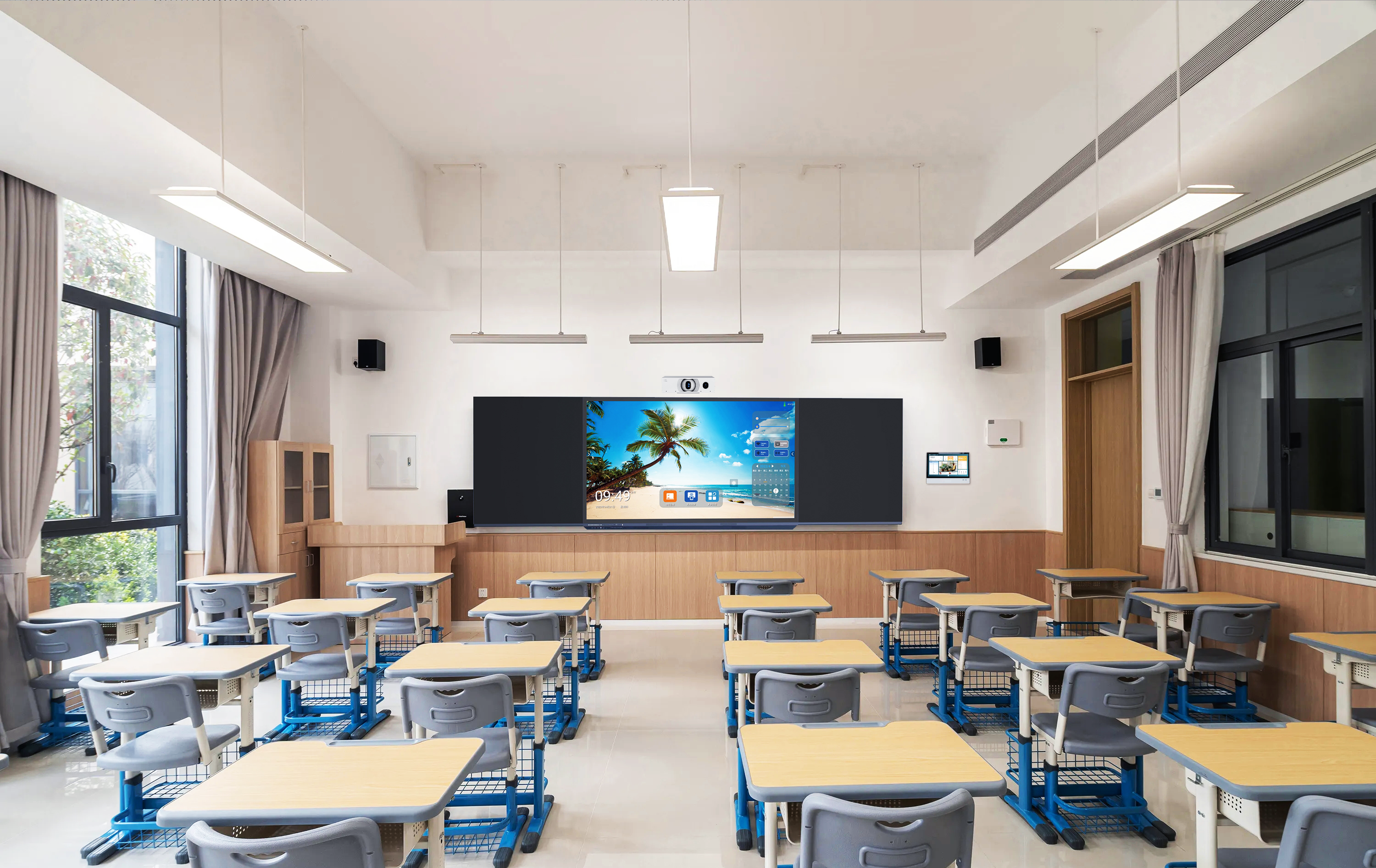
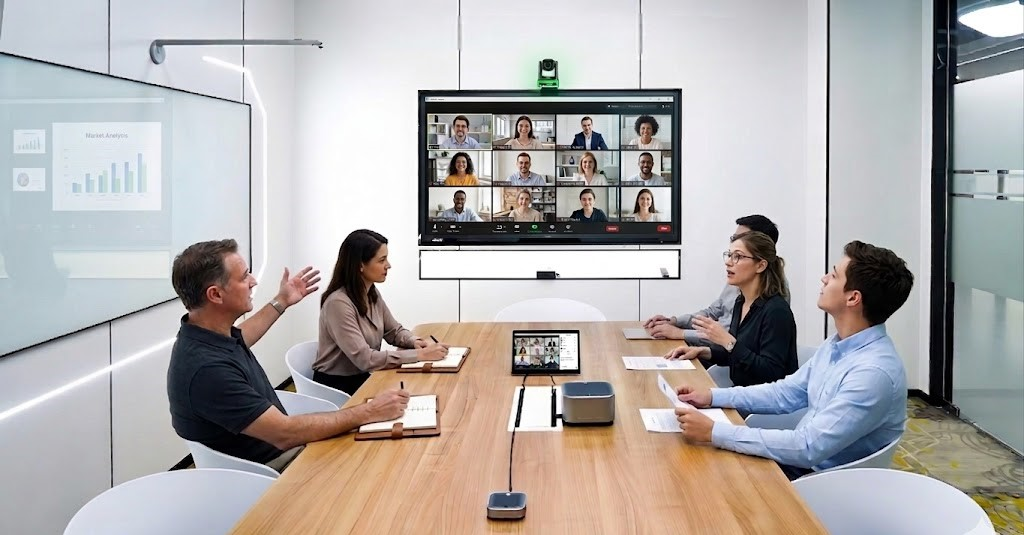
Quick answerA successful video conference room setup comes down to matching the room size to the right level of AV — from a simple display-and-speakerphone huddle space, through a standard room with a PTZ camera and room PC, up to a boardroom with distributed audio. Get the audio right first; it is where most rooms fail. This guide breaks the build into three levels so you can spec the room your client actually needs.
For a system integrator, a video conference room is won or lost on two things: matching the kit to the room, and getting the audio right. Over-spec a huddle room and you price yourself out of the project; under-spec a boardroom and the client comes back saying the far end cannot hear them. The cleanest way to scope a build is to think in levels. Here is how Level 1, 2, and 3 differ, what goes in each, and the integration details that decide whether the room actually works once it is installed.
Start with the room, not the gadgets
Room size and use dictate everything else: how many seats, how far the furthest person sits from the display, and whether remote participants need to see the whole room or just a presenter. Define the level before you pick a single device — it keeps the quote honest and stops you bolting on hardware the room does not need.
Then plan audio first, because audio is where most rooms fail. One detail catches inexperienced builds: an interactive flat panel’s audio output is line-level, so it must feed an active (powered) speaker, never a passive one. Budget that active speaker as a line item, and in larger rooms remember that passive speakers need an amplifier. Get this wrong and the room looks finished but sounds broken.
The three levels at a glance
| Element | Level 1 — Huddle | Level 2 — Standard | Level 3 — Boardroom |
|---|---|---|---|
| Seats | 2–6 | 6–12 | 12+ |
| Display | Single IFP | IFP | Large IFP or 110″ all-in-one |
| Camera | Built-in or USB wide camera | PTZ with optical zoom | PTZ, or built-in AI camera |
| Audio | Conference speaker (mic array) | Conference speaker; add 2nd for long tables | Active speakers + ceiling/table mics |
| Content sharing | Wireless screen share | Wireless screen share | Wireless + wired |
| Compute | BYOD laptop | Room PC via OPS module | Room PC via OPS + optional control |
| Typical use | Quick internal calls | Regular Teams / Zoom meetings | Executive and large meetings |
Audio and camera: where the room is made or broken
On audio, a conference speaker with a built-in microphone array covers a small-to-mid table on its own, so you often do not need separate microphones in Level 1 and many Level 2 rooms. Long tables need a second unit, and large boardrooms move to ceiling or table mics with active speakers — sized to the room, not guessed. Always keep the line-level rule in mind: the display drives an active speaker, not a passive one.
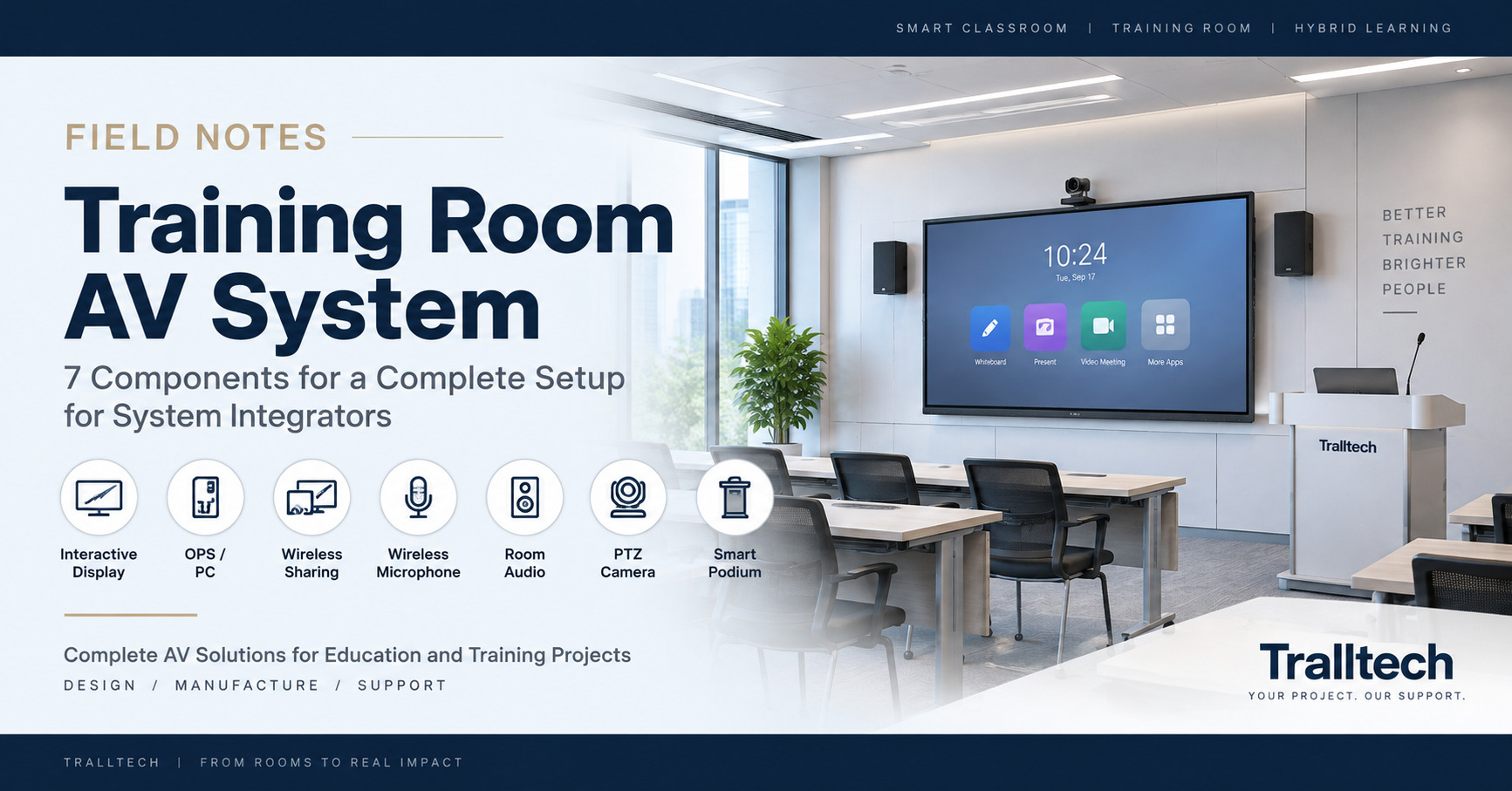
On camera, choose by reach and framing. A PTZ camera with optical zoom suits medium-to-large rooms where you need to frame people several metres away or zoom to the far end of the table; a small huddle room is fine with a fixed wide camera. One useful shortcut at the top end: a 110″ all-in-one display ships with a built-in AI camera and microphone array, so a large room built around it can skip a separate camera and mic — a real saving in both cost and cabling. Spec the camera’s zoom and outputs to the room, and be honest with the client about what it does and does not do rather than overselling features it lacks.
Network, compute, and platform compatibility
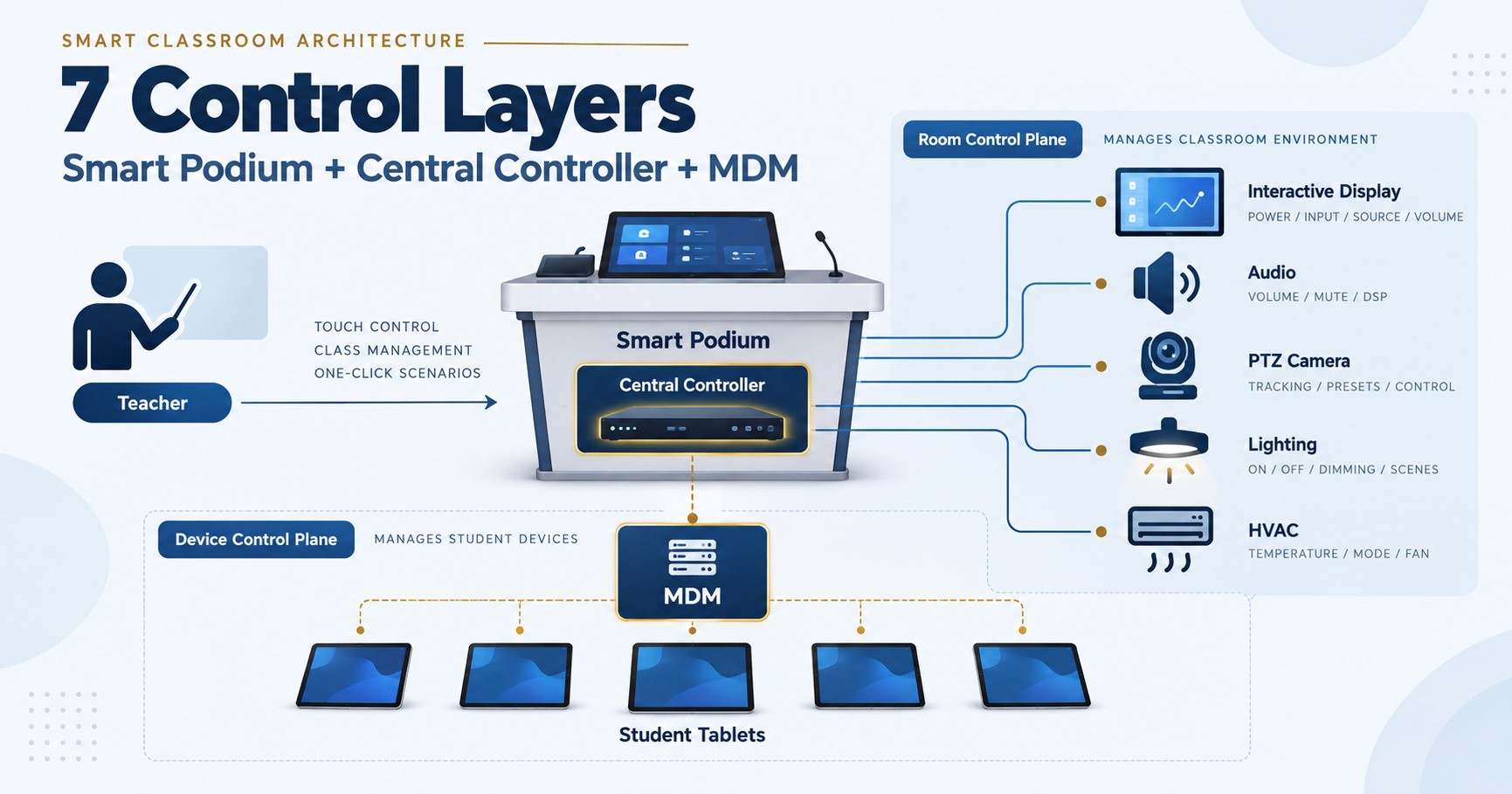
For compute, Level 1 can run bring-your-own-device: a laptop joins the call and pushes content over wireless screen sharing. From Level 2 up, fit a room PC via an OPS module so the room is always ready and not dependent on whoever walks in with a laptop.
On platform, build the room platform-agnostic. A room PC or a BYOD laptop runs whichever service the client uses — Zoom, Teams, or another — while the camera and audio present as standard USB devices that any platform accepts. Finally, plan the network early: if the design includes a wireless access point, it needs a PoE switch, which the integrator supplies as part of the room infrastructure rather than the display package. Sorting cabling and the switch up front avoids a scramble on installation day.
Frequently asked questions
What size video conference room needs a PTZ camera?
Roughly medium-to-large rooms, where the camera has to frame people several metres away or zoom to the far end of a long table. Small huddle rooms are usually well served by a fixed wide camera or an all-in-one display with a built-in camera, so a PTZ there is over-spec.
Do I need a separate microphone for a video conference room?
Not always. A conference speaker with a built-in microphone array covers a small-to-mid table on its own. Long tables need a second unit, and large rooms move to ceiling or table mics. Some large displays with a built-in microphone array can also cover the room without add-ons.
Can one video conference room work with both Zoom and Teams?
Yes — build it platform-agnostic. A room PC via an OPS module, or a BYOD laptop, runs whichever platform the client uses, while the camera and audio present as standard USB devices that Zoom, Teams, and others all accept. No platform lock-in is needed at the hardware level.
Key takeaways
- Scope by room: match Level 1 / 2 / 3 to seats, distance, and use before choosing any device.
- Audio decides the room — the display’s output is line-level, so always budget an active speaker; a conference speaker’s mic array covers small tables, while larger rooms need more.
- Save where the hardware allows: an all-in-one display with a built-in camera and mics can replace a separate camera and mic in the right room, and a room PC via an OPS module keeps the space always-ready and platform-agnostic.
Written by the Tralltech Technical Team · Last reviewed: August 2026
Related guides: How to write conference room tender specifications · Conference room audio system design · What size display for a conference room
Explore our solution: Video Conference Room Solution