Quick answerTo set up an offline classroom, you store all learning content on a local content server inside the school and serve it over a local Wi-Fi network to tablets or an interactive flat panel — so teaching runs with no live internet. The hardware is the easy part; the project succeeds or fails on power reliability, content pre-loading, and a sync routine for the rare moments a connection is available.
For a system integrator, an offline classroom is rarely a “nice to have” — it is often the only thing that actually works. Rural schools, refugee-education programmes, and many donor-funded projects sit in places where bandwidth is expensive, intermittent, or simply absent. Winning these projects is less about the numbers on a datasheet and more about proving the room will still work on a Tuesday morning when the link is down and the power flickers. This guide walks through the stack, the software model, and the on-site realities that decide whether the deployment holds up — written for the integrator who has to make it run, not just ship it.
What an offline classroom actually is (and isn’t)
An offline classroom is local-first, not “internet-free forever.” Content lives on a small, low-power local content server (often called a mini server) inside the school. Devices pull lessons, videos, and quizzes from that server over a local network, with no cloud round-trip. When a connection does appear — a periodic uplink, a technician’s visit, a mobile hotspot — the server syncs: new content in, usage data out. Teaching never waits for the link.
What it is not: it is not simply “tablets with some apps loaded.” Loose devices with no central content store, no management, and no sync plan become unmanaged e-waste within a term. The defining component of an offline classroom is the server and the routine around it — not the screens.
The core stack: what goes in the room
Design one repeatable “classroom kit” and clone it across the project. The components below cover a complete room; the optional items depend on budget and whether there is a teacher hub.
| Component | Role | Integrator notes |
|---|---|---|
| Local content server (mini server) | Stores and serves all lessons offline; runs the learning platform | The heart of the room. Pre-load content before shipment where possible. Can be custom-built / OEM. |
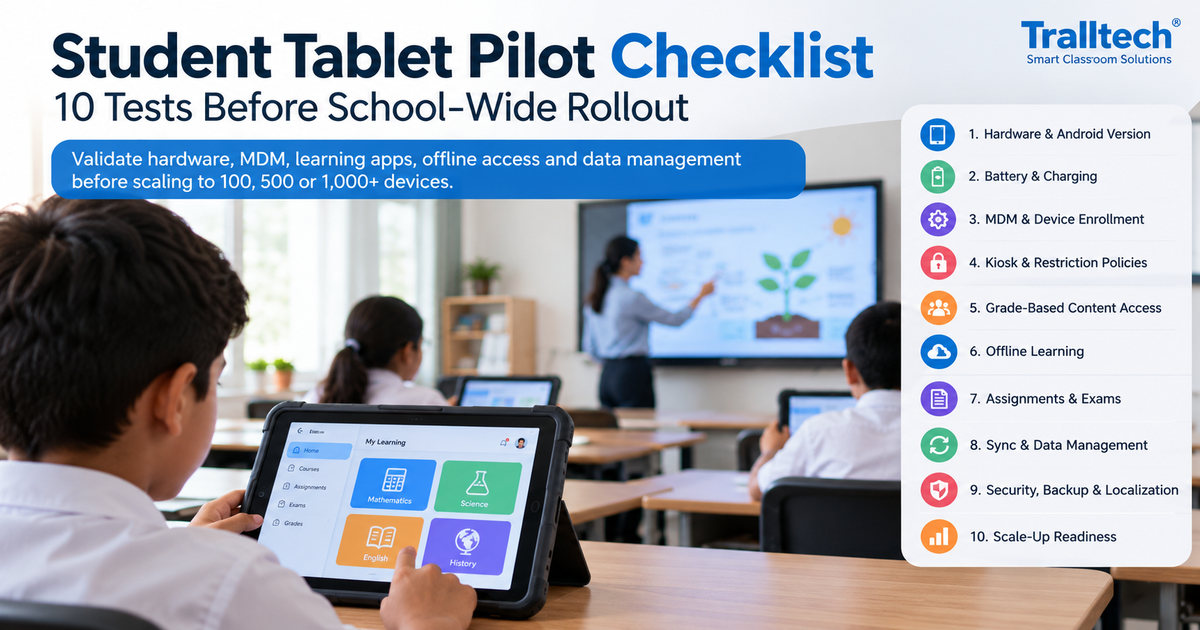
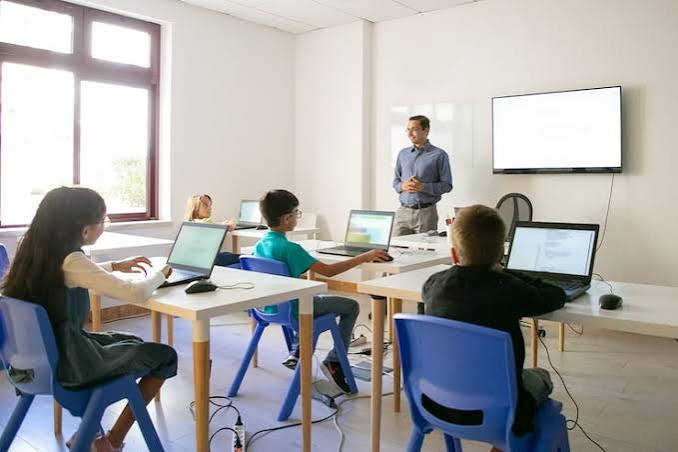
| Student tablets (rugged) | One-per-learner access; drop-resistant for young users | Choose rugged + management-ready; pair with a charging cart. |
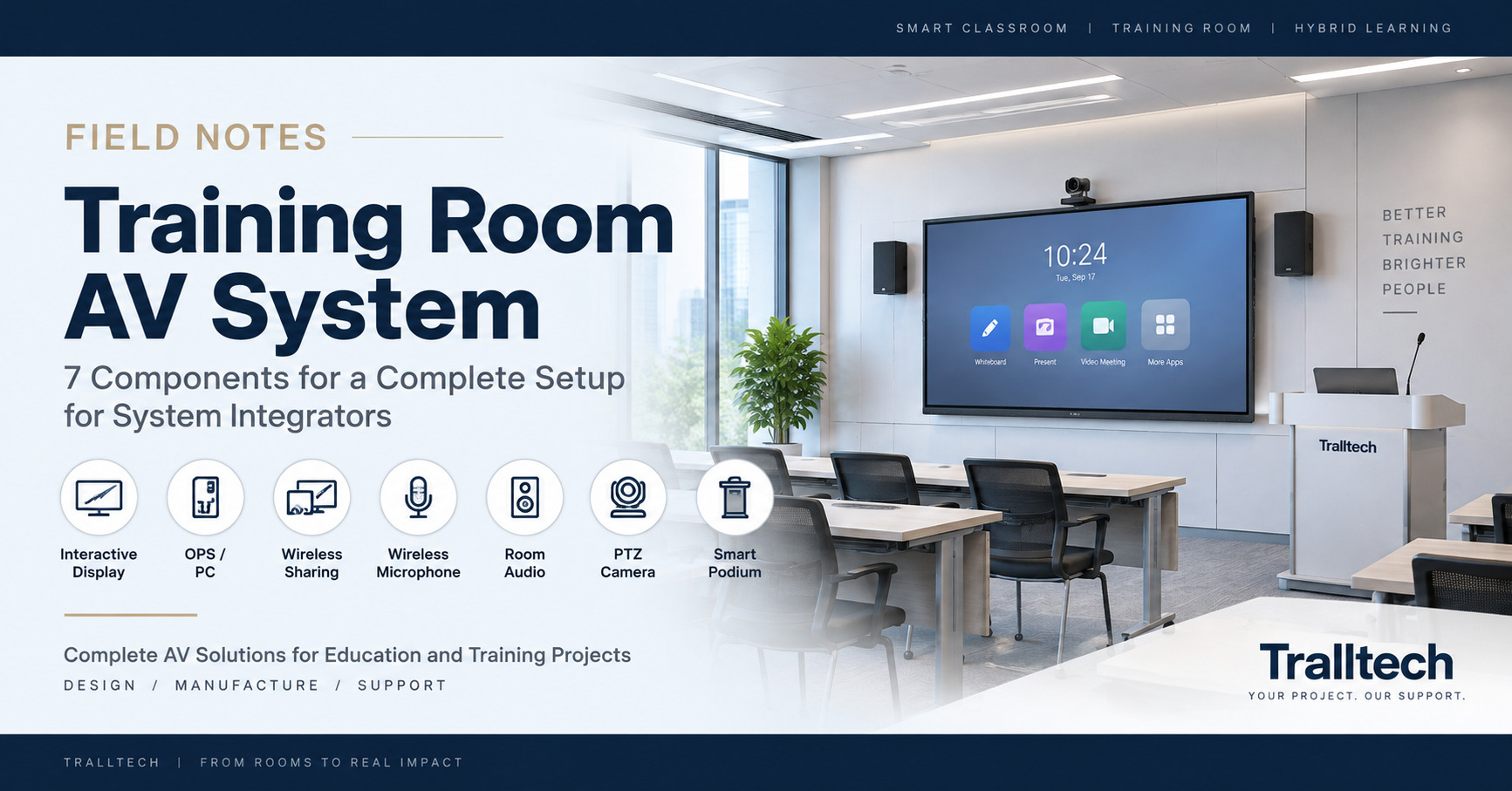
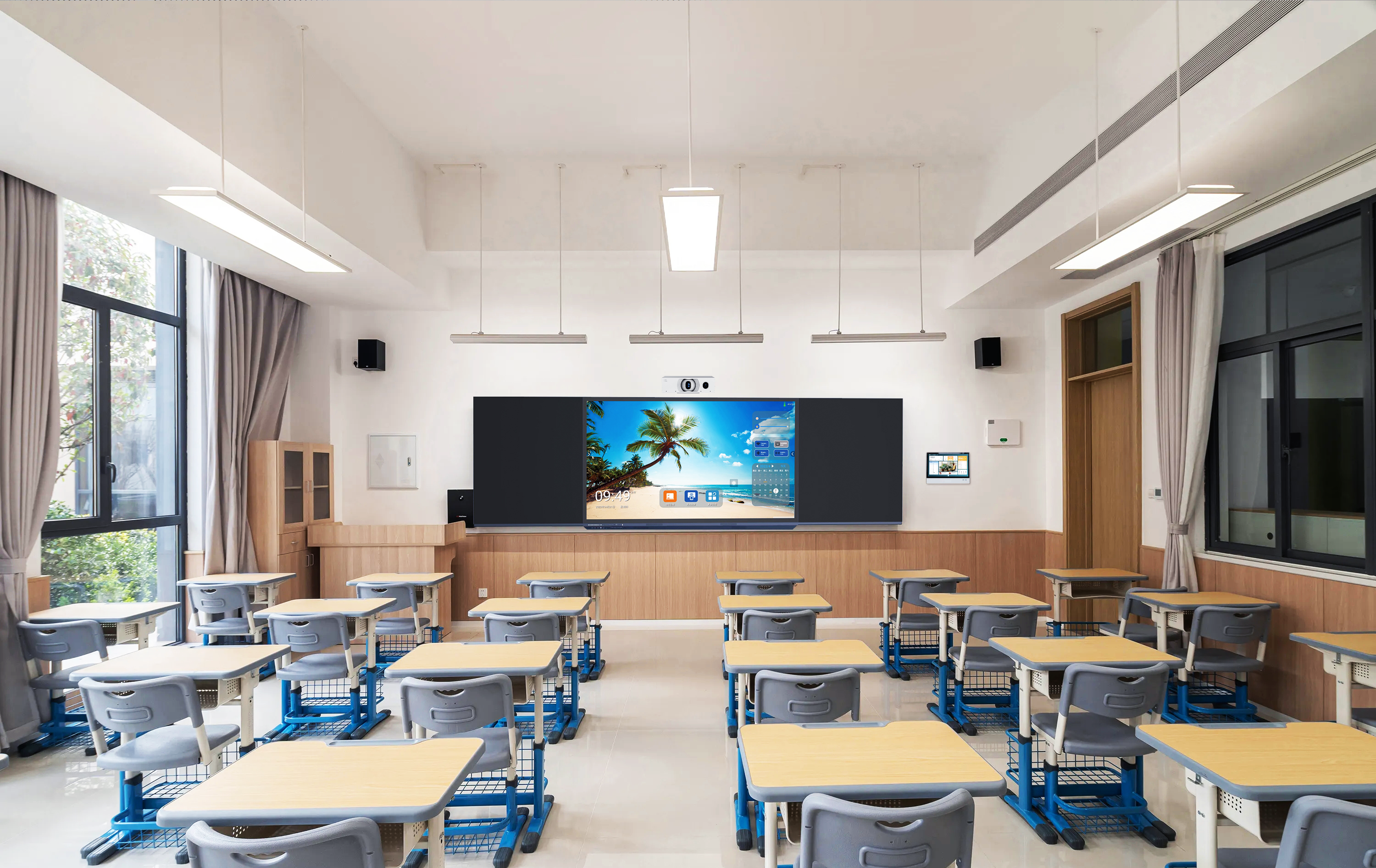
| Interactive flat panel (optional) | Teacher-led, front-of-class display | Use when there is a teacher hub and budget allows; not required for a tablet-only room. IFP audio is line-level — it must connect to an active speaker, not a passive one. |
| Local Wi-Fi access point | Connects devices to the server with no internet | Needs a PoE switch to power it — that switch is usually supplied by the integrator and is easy to leave out of the equipment BOM. |
| Charging cart | Stores, charges, and secures tablets between lessons | Can double as the daily sync point if the server lives in the cart. |
| Power backup (UPS) | Keeps the server and access point alive through outages | Often the difference between a working room and a dead one in unstable-grid regions. |
The software layer: platform vs content
The cleanest mental model is simple: you provide the platform, the client keeps the content. An offline learning platform such as Kolibri runs on the local server and handles the offline library, user accounts, and progress sync. The actual curriculum — which subjects, which language, which national standards — is loaded and owned by the client, ministry, or NGO running the programme, not by the hardware supplier.
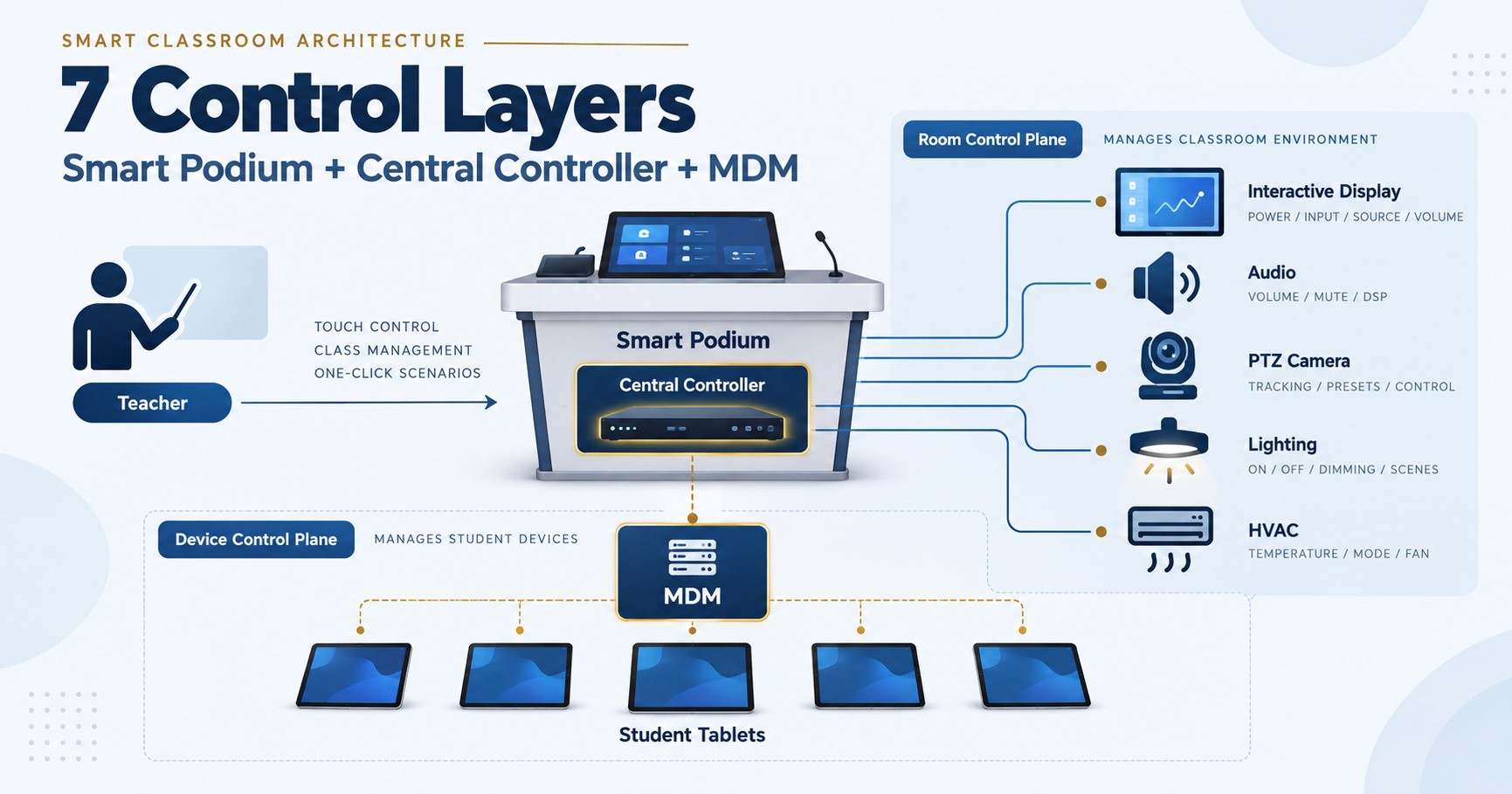
Layer device management on top so you can lock devices to the learning apps, push updates, and recover lost units. The rule of thumb for an integrator: standardise the platform and the management once, then let each project load its own content. That keeps every deployment supportable without you becoming the curriculum department.
A practical licensing note when assembling any custom launcher or management layer: stick to permissive open-source licences (MIT / Apache / BSD) and avoid copyleft licences that could oblige you to open-source your own work.
Field realities: the gotchas that sink deployments
This is where projects are actually won or lost, and where a generic spec sheet won’t help you:
- Power before everything. An unstable grid kills servers and access points. Budget a UPS for the core equipment and ask early whether solar or generator backup is in scope.
- The access point needs a PoE switch. The AP doesn’t power itself; the PoE switch is the integrator’s responsibility and is one of the most common items forgotten at quoting time.
- Pre-load, don’t plan to download. Loading a full content library over a weak link on site can take days. Image the server before it ships.
- Plan the sync, not just the install. Decide up front how and how often the server reconnects (technician visits, periodic hotspot, scheduled uplink). That cadence defines how fresh your content and reporting stay.
- Audio is a classic miss. An interactive flat panel outputs line-level audio and must be wired to an active speaker; connect it to a passive speaker and the room stays silent.
Sizing and rolling out across a project
Most offline-classroom projects are multi-school, not single-room, so the smart move is to design one repeatable kit and replicate it — the same logic behind our offline education solution built for integrators. A tablet-only kit (server + tablets + access point + charging cart + UPS) is the lowest-cost, most shippable unit and suits early-stage or donor-funded rollouts. Add an interactive flat panel only where there is a teacher hub and the budget supports it — the same display can later anchor a full smart classroom solution once the site gains reliable power and connectivity.
A useful sequencing tactic: land the core kit first, then let the deployment reveal the gaps — no projection, no audio, no central management — and add those components in later phases. This keeps the first purchase order small enough to win, and gives you a natural reason to come back for the next phase.
Frequently asked questions
Can an offline classroom work with no internet at all?
Yes. All content lives on the local server and is served over a local network, so lessons run with zero connectivity. Internet is only needed occasionally to sync new content and upload usage data — and even that can be handled by a technician carrying updates physically on a drive.
Do students need individual tablets, or can one interactive flat panel work?
Both models work. A single interactive flat panel supports teacher-led, front-of-class lessons at the lowest device count. Individual tablets enable self-paced learning and per-student data, at higher cost and management overhead. Many projects start with one approach and expand later as budget allows.
How do you update content in an offline classroom?
Updates happen during sync windows — whenever the server briefly reconnects to a network. The platform pulls new material and pushes usage data, then goes back offline. For fully disconnected sites, content can be loaded from a USB drive or a pre-imaged replacement server.
Key takeaways
- An offline classroom is local-first, not internet-free: a local content server serves lessons over a local network and syncs only when a connection appears.
- The hardware is straightforward — power reliability, content pre-loading, and a sync routine are what actually decide whether the deployment holds up.
- Standardise one repeatable classroom kit, keep platform and content separate, and use permissive open-source licensing for any custom software layer.
Written by the Tralltech Technical Team · Last reviewed: June 2026
Related: Offline Education Solution · Smart Classroom Solution · Talk to our technical team