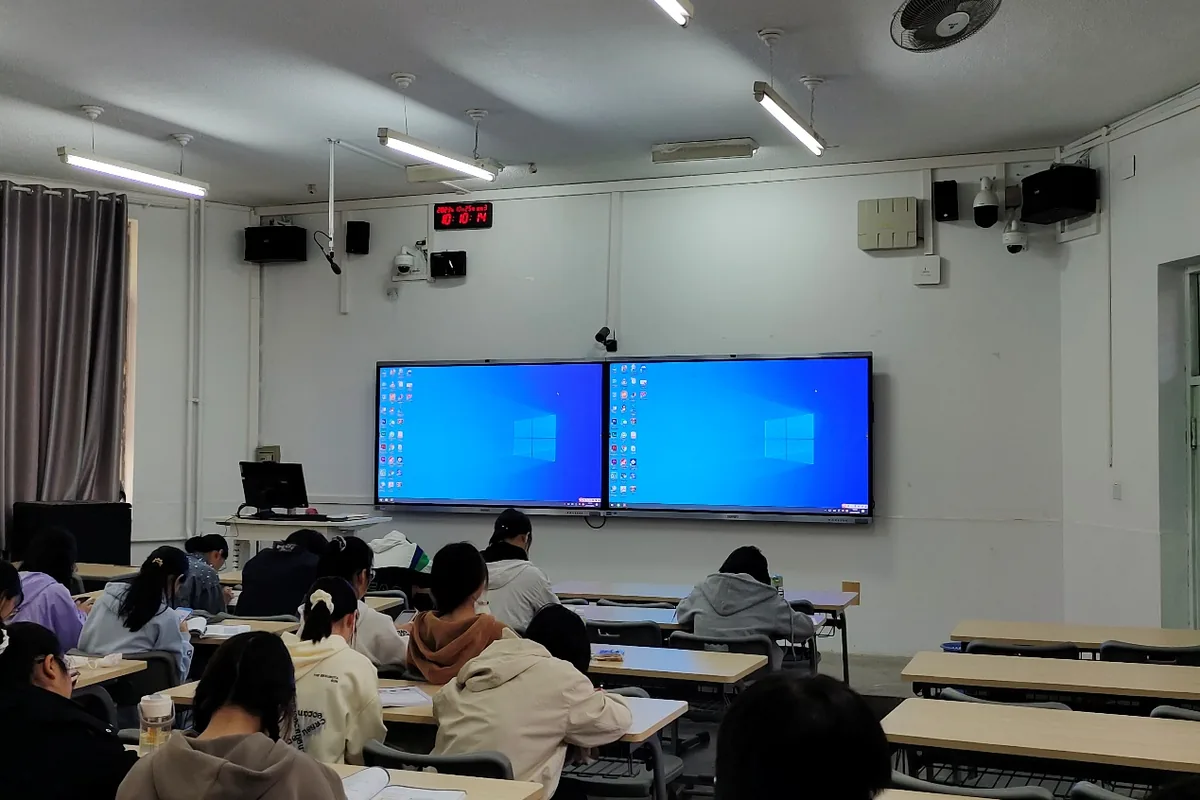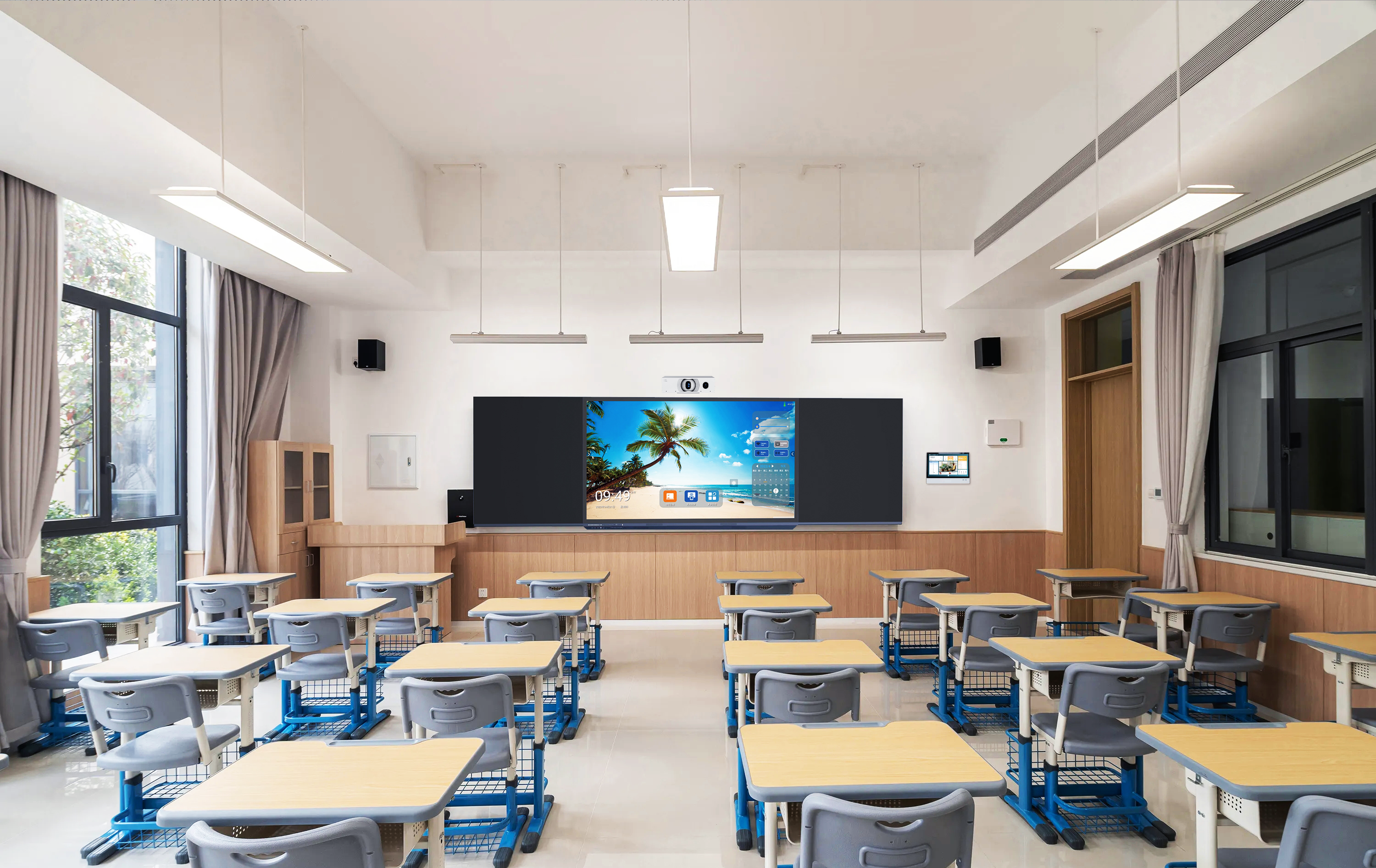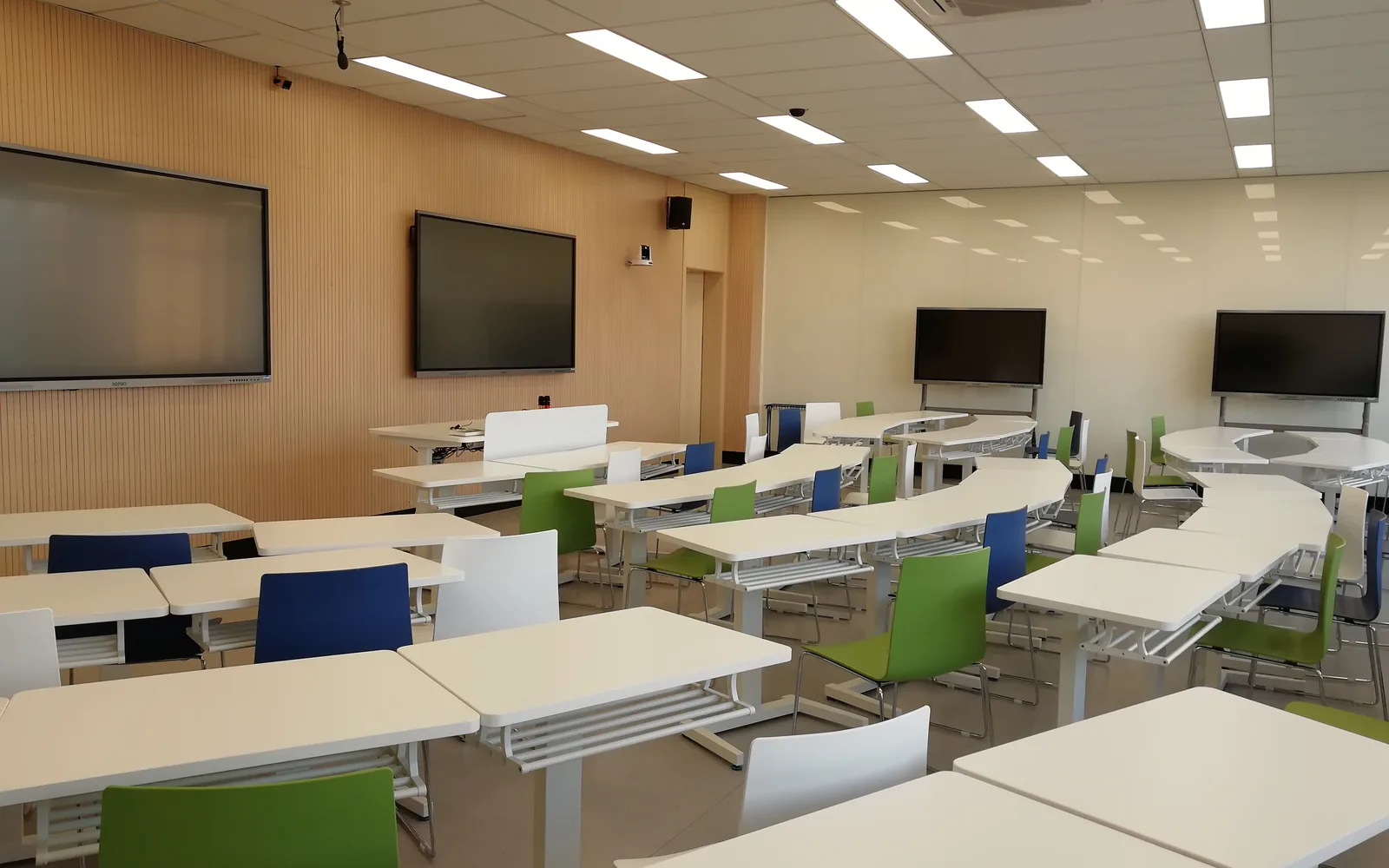
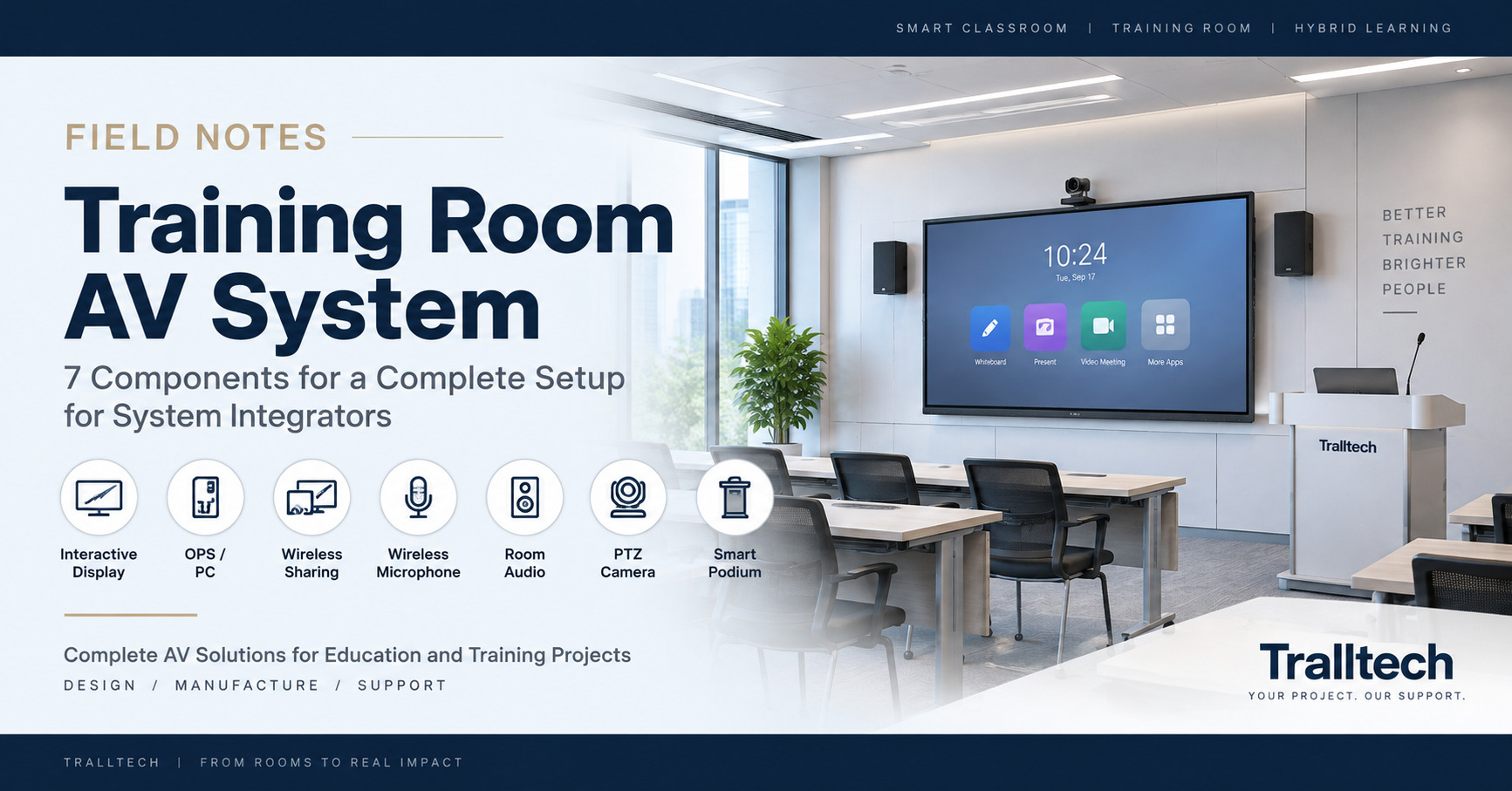
A training room sits between a classroom, a meeting room and a presentation space. The trainer may need to teach from the front of the room, annotate content, play media, share a laptop, communicate with remote participants and sometimes record the session.
That is why treating the project as “one display plus one microphone” usually leaves important gaps. The better approach is to define the training workflow first, then build the AV system around it.
What Is a Training Room AV System?
A training room AV system is an integrated set of display, audio, video, computing and presentation equipment designed to support instructor-led and hybrid training.
Unlike a normal meeting room, the system is usually centered on a trainer presenting information to a group rather than multiple participants having an equal conversation. Unlike a standard classroom, a training room may also need video conferencing, recording, external laptop presentation and flexible content sources.
The exact equipment therefore depends on three questions:
- How large is the room?
- Is training local only, or hybrid?
- Does the trainer need simple presentation, full interaction or recording?
For project planning, answer those questions first and build the equipment list afterwards.
The 7 Core Components of a Training Room AV System
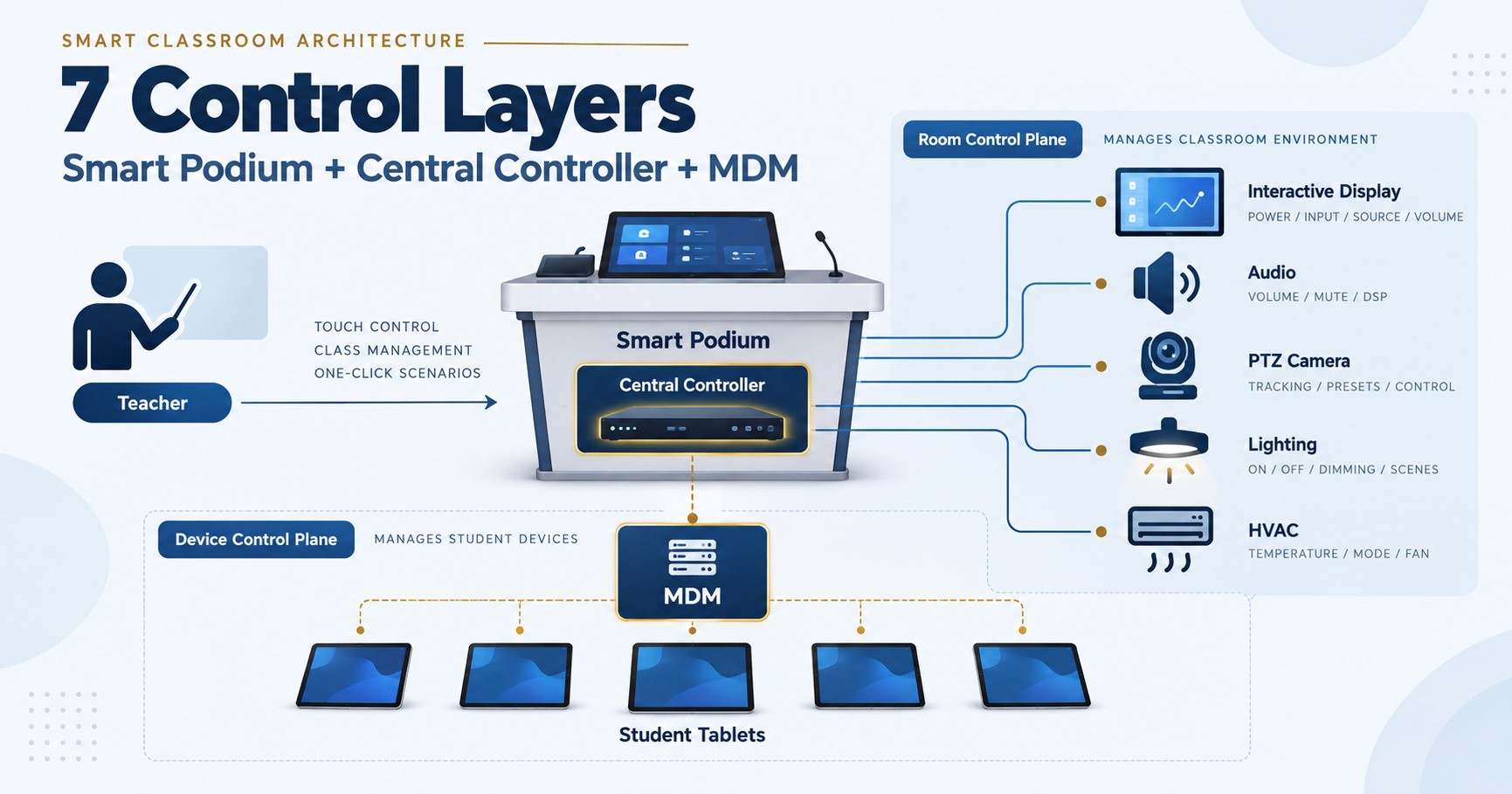
A complete training room normally contains up to seven functional layers. Not every project needs all seven.
| Component | Function in the Training Room | When It Becomes Important |
|---|---|---|
| Interactive flat panel | Main visual display and annotation surface | Almost every modern training room |
| OPS or training PC | Runs presentation, browser and training software | When the room needs a permanent computing environment |
| Wireless screen sharing | Lets trainers present from laptops without repeatedly reconnecting cables | Multi-trainer and BYOD environments |
| Wireless microphone | Captures trainer speech clearly | Medium and large rooms |
| Room audio system | Distributes speech and program audio | When built-in display speakers are insufficient |
| PTZ camera | Captures the trainer and room for remote participants or recording | Hybrid and recorded training |
| Smart podium | Provides a fixed trainer control position | Structured training, instructor-training and lecture spaces |
The important point is that these are functions, not seven products that must automatically appear in every quotation. A small local training room may need only the first three or four, while a hybrid instructor-training space may use almost all seven.
1. Interactive Display: The Main Training Surface
The interactive flat panel is normally the visual center of a modern training room.
It combines a 4K display and interactive writing surface, allowing trainers to present, annotate and operate digital content from the front of the room.
For an integrator, display selection should begin with viewing distance, room layout and participant capacity rather than simply asking which screen size is cheaper.
The display also affects several downstream decisions:
- whether an OPS computer is required;
- how trainers connect their own laptops;
- whether additional room speakers are necessary;
- how video conferencing equipment connects;
- where the trainer stands and operates the room.
For available display configurations, see the Tralltech interactive flat panel range.
2. OPS or Training PC: Where the Software Runs
An OPS module or external training PC provides the computing environment for presentation software, browsers, training applications and video conferencing.
The key design question is not simply “Do we need a PC?” It is: who controls the session, and from which device?
| Arrangement | Best Suited To |
|---|---|
| Built-in Android only | Simple presentation and whiteboarding |
| IFP + OPS | Fixed training rooms requiring a self-contained Windows environment |
| IFP + trainer laptop | Organizations where instructors bring their own computers |
For permanent institutional installations, an OPS-equipped display can reduce loose cables and give trainers a more consistent room experience. See our OPS computing modules.
3. Wireless Screen Sharing: Reduce Trainer Changeover Time
Wireless screen sharing reduces the friction of changing presenters in rooms used by multiple instructors.
Instead of reconnecting HDMI cables every time a different trainer takes over, the trainer can share a laptop to the main display wirelessly.
That operational detail matters. In training environments, small problems such as a missing adapter, the wrong input source or an incompatible cable quickly become support calls.
A good room workflow should be simple:
enter the room → connect → present → annotate → finish.
Wireless sharing should still be planned with a wired fallback where project reliability is more important than convenience. See the wireless screen sharing options available for system integration.
4. Wireless Microphone: Trainer Voice Comes First
A training room microphone system is primarily there to keep the instructor’s voice intelligible throughout the room.
This is different from a boardroom. A meeting room may need to capture many participants around a table, while a training room usually has one dominant speaker — the trainer.
Depending on the training style, handheld, lapel or headset microphones may be appropriate.
For project work, integrators should confirm:
- the permitted UHF frequency range in the destination country;
- whether one or multiple microphone channels are required;
- receiver output compatibility with downstream audio equipment;
- receiver power and rack requirements;
- battery requirements for the transmitters.
These engineering details often cause more commissioning problems than headline microphone specifications. Our wireless microphone system page includes the integration points that should be checked before quoting.
5. Room Audio: Separate Voice Coverage From the Display
Built-in display speakers may be enough for a small room, but larger training spaces often need dedicated room audio.
The design should answer two separate questions:
Can everyone hear the trainer clearly?
Can everyone hear video and program audio clearly?
Those requirements are related, but they do not always use the same signal path.
Where external loudspeakers are used, confirm whether the source output is line-level and whether the selected speakers are active or require an amplifier.
This should be resolved on the system diagram before installation rather than discovered on site. See the Tralltech audio system range for available room-audio components.
6. PTZ Camera: Add It When the Room Becomes Hybrid
A PTZ camera becomes important when the training room must support remote participation, recording or instructor capture.
It should not automatically be added to every project.
Typical reasons to include a PTZ camera are:
- remote participants;
- instructor capture;
- training-session recording;
- lecture capture;
- centralized streaming.
Camera position is just as important as camera capability. A technically capable camera mounted in the wrong position can still give remote participants a poor view of the trainer or presentation area.
Camera selection should therefore follow the room workflow: what needs to be seen, by whom, and from where?
For rooms requiring IP and USB video workflows, see our 4K PTZ camera configuration.
7. Smart Podium: Give the Trainer One Control Point
A smart podium becomes useful when the trainer needs a fixed working position for presentation, computer control and connected AV equipment.
It is particularly appropriate for:
- university training facilities;
- government training centres;
- vocational institutes;
- instructor-training rooms;
- larger lecture-style spaces.
The podium should not be specified simply because it makes the room look more advanced. Its real value is operational: it gives the trainer a predictable place to control the session and reduces loose equipment at the front of the room.
For larger training environments, see our Double Screen Smart Podium with Mobility.
Three Practical Training Room Configurations
The same room type can require very different equipment depending on how training is delivered.
Level 1 — Local Presentation Room
Typical configuration: interactive flat panel + OPS or trainer laptop + wireless screen sharing.
Add a wireless microphone where the room size or training style requires voice reinforcement. This is the lowest-complexity configuration and is suitable when all participants are physically in the room.
Level 2 — Interactive Training Room
Typical configuration: interactive flat panel + OPS + wireless sharing + wireless microphone + room audio + optional smart podium.
This creates a more stable operating environment for institutions that use the room repeatedly for instructor-led training.
Level 3 — Hybrid Training Room
Typical configuration: interactive flat panel + OPS + wireless sharing + wireless microphone + room audio + PTZ camera + optional smart podium.
Video conferencing or lecture-capture software can then be added according to the project requirement.
Hybrid functionality affects both video and audio architecture. Adding a camera alone does not create a properly designed hybrid training room.
A Simple Training Room Signal Flow
Before quoting equipment, draw the signal flow. It makes duplicated hardware, incompatible interfaces and missing connections much easier to identify.
Trainer laptop / OPS → Interactive display → Visual content for participantsLocal voice:
Wireless microphone → Audio system → Room loudspeakersHybrid session:
PTZ camera + microphone audio → OPS / conferencing PC → Remote platform
Remote participant audio → Room audio system
The exact connections depend on the selected hardware, but separating these functions during design helps prevent audio-routing and commissioning problems.
This type of room can also form part of the broader smart classroom system we design for integrators, especially where training rooms, classrooms and hybrid learning spaces need to use a common equipment platform.
What Should an Integrator Confirm Before Quoting?
Do not build the BOM until the training workflow and room requirements are clear.
Confirm these seven items first:
- Room dimensions and approximate participant capacity.
- Local-only or hybrid training.
- Main trainer position.
- Number of simultaneous presenters or microphones.
- Trainer-owned laptop or permanent room PC.
- Need for recording or streaming.
- Existing network, cabling and rack infrastructure.
These answers usually determine more of the final BOM than an individual product specification does. That is why a training-room quotation should be prepared as a system BOM, not as an isolated display quotation.
Who Installs the Training Room AV System?
Installation is done by you, the local integrator. We provide topology, BOM, rack layout and remote commissioning support.
Local installation keeps cabling, mounting, local compliance and first-line aftercare with the project company that already owns the customer relationship.
We ship, engineer and support — you install.
We never contact your end clients — your project stays yours.
Frequently Asked Questions
What equipment is needed for a training room AV system?
A basic system normally needs an interactive display, computing source and presentation connection. Larger or hybrid rooms can add microphones, room audio, PTZ video capture and a trainer control point.
Does every training room need a PTZ camera?
No. A PTZ camera is mainly required for hybrid training, remote participation, instructor capture or recording. A local presentation room can be designed without one.
Are built-in display speakers enough for a training room?
They can be sufficient in smaller rooms, but larger spaces may require dedicated room audio. The decision should follow room size, listening distance and the required speech and program-audio coverage.
Should the trainer use an OPS computer or a laptop?
Either can work. An OPS provides a permanent room computer, while laptop-based operation suits organizations where trainers regularly bring their own devices.
Can a training room support video conferencing?
Yes. Add suitable camera, microphone, audio routing and conferencing computing for hybrid sessions. The audio architecture must account for both local reinforcement and remote call audio.
Do you contact the end client?
Never. Your client relationship stays yours — we have no sales contact with your end users.
Key Takeaways
A training room is a system, not a screen.
Start with the room workflow, then select the equipment.
Do not add every device by default.
Local presentation, interactive training and hybrid training require different equipment levels.
Design the connections before the quotation.
Signal flow, audio routing and control determine whether the room will actually work when installed.
Planning a training room project?Send us the room size, participant capacity and whether the room is local or hybrid. We can help prepare the system topology, equipment BOM and technical specifications for your project.
Related Guides
- Lecture Hall & Auditorium AV Setup
- School Computer Lab Equipment List
- Virtual Lab Tender Guide for System Integrators
Explore our solution: Smart Classroom Solution
Written by the Tralltech Technical Team · Last reviewed: September 2026